
PhilHealth Login 2026: Access Member Portal & MDR Online
Logging into PhilHealth shouldn’t eat up your entire lunch break, yet plenty of Filipinos still get stuck. Maybe you’re staring at an “invalid credentials” error, or you simply can’t remember which portal applies to your situation. That confusion is common, especially with separate systems for members, employers, and healthcare providers.
This guide clears that up completely. We’ll walk through every PhilHealth login step, from creating your account for the first time to recovering a forgotten password. Whether you’re checking your contribution history at home or managing things remotely as an OFW abroad, you’ll find clear, no-nonsense instructions here. No more guessing, no more wasted minutes.

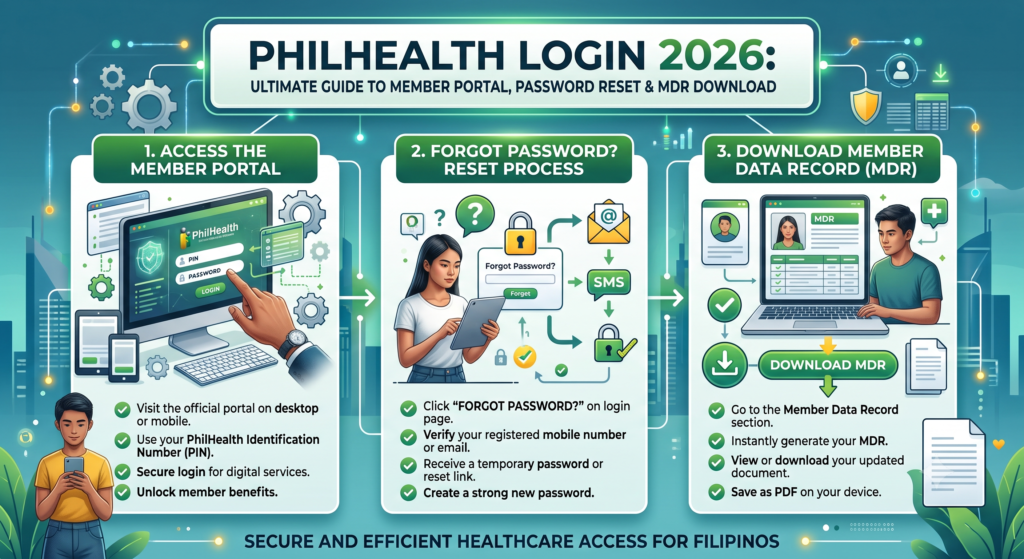
2. What Is PhilHealth Login?
PhilHealth Login is the secure sign-in system that lets members access their personal account through the PhilHealth Member Portal. After signing in with your 12-digit PhilHealth Identification Number (PIN) and password, you can view your membership details, check premium payments, download important documents, and manage your account online. The portal makes it easier to use PhilHealth services without visiting a local branch, saving both time and effort.
How to Access the PhilHealth Login Portal
Follow these simple steps to sign in to your account:
- Visit the official PhilHealth Online Services website.
- Open the Member Portal login page.
- Enter your 12-digit PhilHealth Identification Number (PIN).
- Type your registered password.
- Complete the security verification if prompted.
- Click Log In to access your dashboard.
You can also use the official eGovPH mobile application to access selected PhilHealth digital services using your registered account.
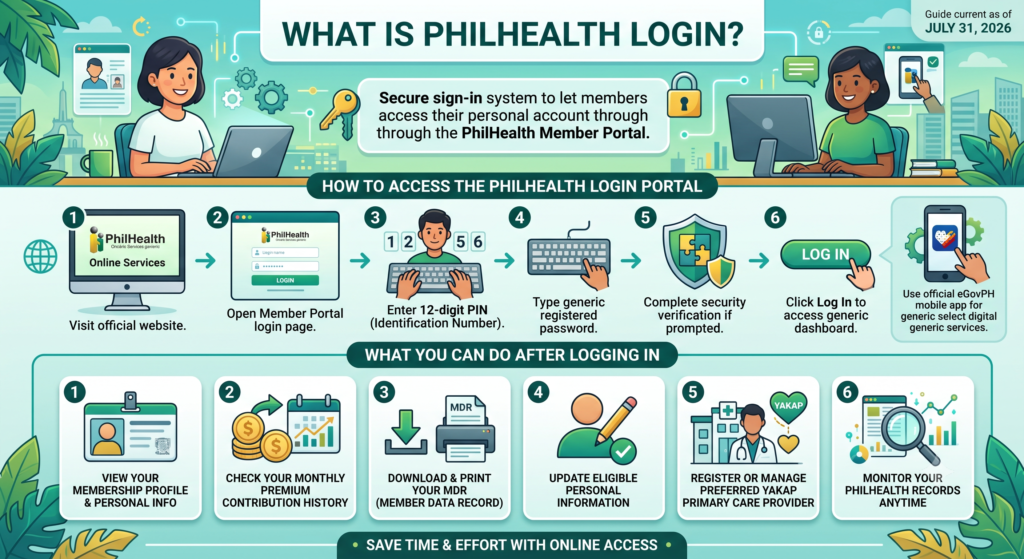
What You Can Do After Logging In
Once you successfully sign in, you can access several useful online services.
- View your membership profile and personal information.
- Check your monthly premium contribution history.
- Download and print your Member Data Record (MDR).
- Update eligible personal information.
- Register or manage your preferred YAKAP primary care provider.
- Monitor your PhilHealth records anytime.
| Service | Available After Login |
|---|---|
| View Membership Information | ✔ Yes |
| Check Contribution History | ✔ Yes |
| Download Member Data Record (MDR) | ✔ Yes |
| Update Personal Information | ✔ Yes |
| Manage YAKAP Registration | ✔ Yes |
| View Account Details | ✔ Yes |
How Do I Login to My PhilHealth Account?
If you already have an online account, logging in only takes a few minutes.
- Go to the official PhilHealth Member Portal.
- Enter your 12-digit PhilHealth Identification Number (PIN).
- Type your registered password.
- Complete the CAPTCHA or security verification if required.
- Click Log In to access your account dashboard.
If you do not have an online account yet, you must register first before you can use the Member Portal.
How Do I Check If I Have a PhilHealth Account?
If you are unsure whether you already have a PhilHealth online account, there are several ways to verify it.
- Try logging in using your PhilHealth PIN and password.
- Click Forgot Password to check if your registered email is linked to an existing account.
- Look for previous PhilHealth registration or activation emails in your inbox.
- Contact the nearest PhilHealth office if you cannot verify your account online.
Tip: Having a PhilHealth Identification Number (PIN) does not automatically mean you have an online Member Portal account. Online access requires separate account activation.
How Do I Open My PhilHealth Account?
Opening a PhilHealth online account is simple once you are an active PhilHealth member.
- Visit the official PhilHealth Member Portal.
- Select Create Account or Register.
- Enter your PhilHealth Identification Number (PIN).
- Provide your personal details and active email address.
- Verify your email through the activation link sent by PhilHealth.
- Create a secure password and complete your account setup.
After activation, you can immediately log in and use the available online services.
How Do You Know If You Are Already Registered in YAKAP PhilHealth?
You can easily verify your YAKAP enrollment after signing in to your PhilHealth account.
- Log in to the PhilHealth Member Portal.
- Open your membership profile or primary care information.
- Check whether a YAKAP healthcare provider is listed under your account.
- Review your registered primary care facility details.
- If no provider appears, you may still need to complete your YAKAP registration through an accredited healthcare provider or the appropriate PhilHealth channel.
| Verification Method | Purpose |
|---|---|
| Member Portal | Check your registered YAKAP provider |
| Membership Profile | View primary care information |
| Accredited Health Facility | Confirm enrollment status |
| Local PhilHealth Office | Request registration verification |
3. What Is the PhilHealth Member Portal?
The PhilHealth Member Portal is a free online platform that helps members manage their PhilHealth account from anywhere. Instead of visiting a branch, you can log in using your 12-digit PhilHealth Identification Number (PIN) and password to access important services. The portal allows you to review your membership details, monitor contribution records, download documents, and complete several account-related tasks through your computer, tablet, or smartphone.
Whether you are an employed worker, self-employed professional, voluntary member, or an Overseas Filipino Worker (OFW), the Member Portal makes it easier to stay connected with your PhilHealth records. It also helps ensure that your account information remains accurate and your membership stays active.
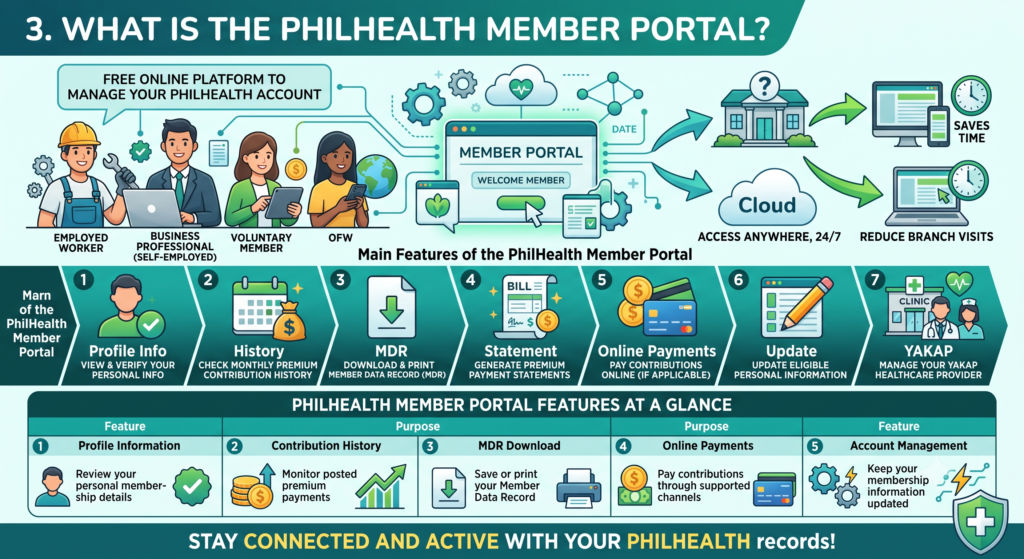
Main Features of the PhilHealth Member Portal
After logging in, you can use several online services designed for PhilHealth members.
- View and verify your personal membership information.
- Check your monthly premium contribution history.
- Download and print your Member Data Record (MDR).
- Generate payment statements for premium contributions.
- Pay contributions online if you are a voluntary or self-paying member.
- Update eligible personal information when necessary.
- Manage your preferred healthcare provider under the YAKAP program.
| Portal Feature | Purpose |
|---|---|
| Profile Information | Review your personal membership details |
| Contribution History | Monitor posted premium payments |
| MDR Download | Save or print your Member Data Record |
| Online Payments | Pay contributions through supported channels |
| Account Management | Keep your membership information updated |
How to Register for the PhilHealth Member Portal
Before creating your online account, make sure you have the required information available.
- Prepare your 12-digit PhilHealth Identification Number (PIN).
- Use an active email address.
- Keep your mobile number ready for verification.
- Make sure your membership information is correct.
Steps to Create Your Account
Creating an online account only takes a few minutes.
- Visit the official PhilHealth Member Portal.
- Click Create Account or Register.
- Enter your PhilHealth PIN and personal details.
- Provide your email address and mobile number.
- Submit your registration.
- Open the activation email sent by PhilHealth.
- Click the verification link to activate your account.
- Sign in using your PIN and newly created password.
What Is the Main Purpose of the PhilHealth Member Portal?
The Member Portal is designed to give members convenient access to their PhilHealth records and online services.
- View your membership profile anytime.
- Check whether your premium contributions have been posted.
- Download important documents like the Member Data Record (MDR).
- Update eligible personal information without unnecessary office visits.
- Access PhilHealth services quickly through one secure online account.
Who Are the Two Types of PhilHealth Members?
PhilHealth generally classifies members into two main groups based on their membership status.
| Member Type | Description |
|---|---|
| Principal Members | Individuals who are directly registered with PhilHealth and have their own PhilHealth Identification Number (PIN). |
| Dependent Members | Qualified family members who receive PhilHealth benefits through a registered principal member. |
Examples of principal members include employed workers, self-employed individuals, voluntary members, Overseas Filipino Workers (OFWs), senior citizens, and lifetime members.
What Is the PhilHealth Check-in Portal?
The PhilHealth check-in portal is an online facility used by participating healthcare providers and PhilHealth systems to verify member information and confirm eligibility for healthcare services. It helps speed up patient verification before medical treatment and allows accredited facilities to process member records more efficiently.
Patients generally do not use this portal for everyday account management. Regular members should use the PhilHealth Member Portal to check contributions, download their MDR, and manage their accounts.
How Do You Know If You Are Already a Member of PhilHealth Online?
If you are unsure whether you already have an active online account, you can verify it using several methods.
- Try signing in with your PhilHealth Identification Number (PIN) and password.
- Use the Forgot Password option to check whether your email address is already registered.
- Search your email inbox for previous PhilHealth registration or account activation messages.
- Review your Member Data Record (MDR) if you have downloaded it before.
- Visit the nearest PhilHealth office if you cannot confirm your membership online.
Note: Having a PhilHealth Identification Number (PIN) means you are registered as a member, but you must still activate your PhilHealth Member Portal account separately before you can access online services.
4. Requirements Before You Log In to the PhilHealth Member Portal
Before you can access your PhilHealth Member Portal account, you must have a registered online account and the correct login credentials. Keeping your personal information updated also helps avoid login errors and makes account verification much easier. If you have not created an online account yet, you should complete the registration process before attempting to sign in.
Once your account is active, you only need a few essential details to access your membership records, check contribution history, download your Member Data Record (MDR), and use other available online services.
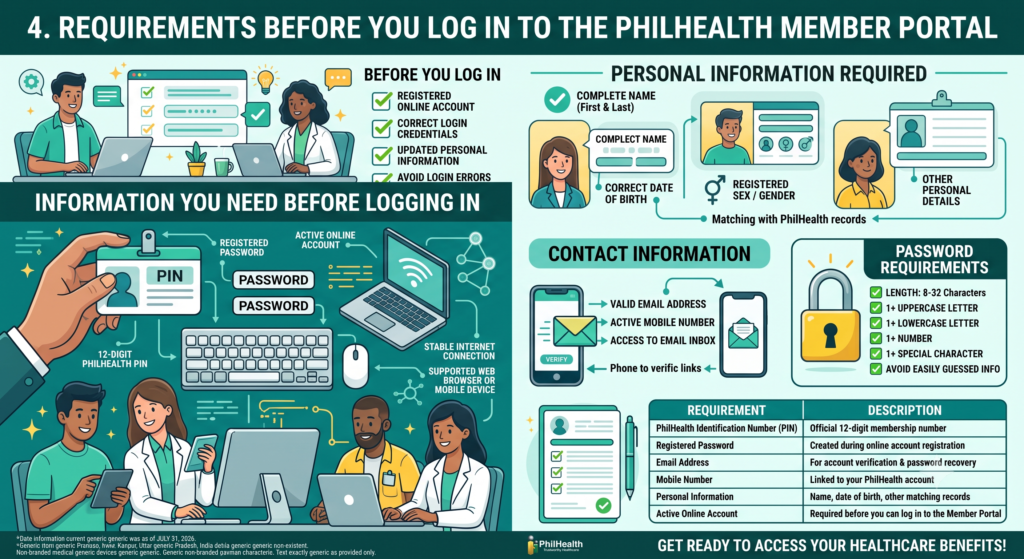
Information You Need Before Logging In
Make sure you have the following details ready before opening the Member Portal.
- Your 12-digit PhilHealth Identification Number (PIN).
- Your registered password.
- An active online Member Portal account.
- A stable internet connection.
- A supported web browser or mobile device.
Personal Information Required
PhilHealth may use your personal information to verify your identity during registration or account recovery.
- Your complete first name and last name.
- Your correct date of birth.
- Your registered sex or gender.
- Other personal details that match your PhilHealth records.
Contact Information
Your registered contact details are important for account activation and password recovery.
- A valid email address used during registration.
- An active mobile phone number linked to your account.
- Access to your email inbox for receiving verification or password reset links.
Password Requirements
Your password should meet the minimum security standards required by the Member Portal.
- Length should be between 8 and 32 characters.
- Include at least one uppercase letter.
- Include at least one lowercase letter.
- Include at least one number.
- Include at least one special character.
- Avoid using easily guessed passwords such as your birthday or name.
| Requirement | Description |
|---|---|
| PhilHealth Identification Number (PIN) | Your official 12-digit membership number |
| Registered Password | Password created during online account registration |
| Email Address | Used for account verification and password recovery |
| Mobile Number | Linked to your PhilHealth account |
| Personal Information | Name, date of birth, and other matching records |
| Active Online Account | Required before you can log in to the Member Portal |
Tip: If you have forgotten your password or cannot remember your PhilHealth Identification Number (PIN), use the official account recovery options before making multiple login attempts. This helps prevent your account from being temporarily locked.
5. How to Create a PhilHealth Online Account
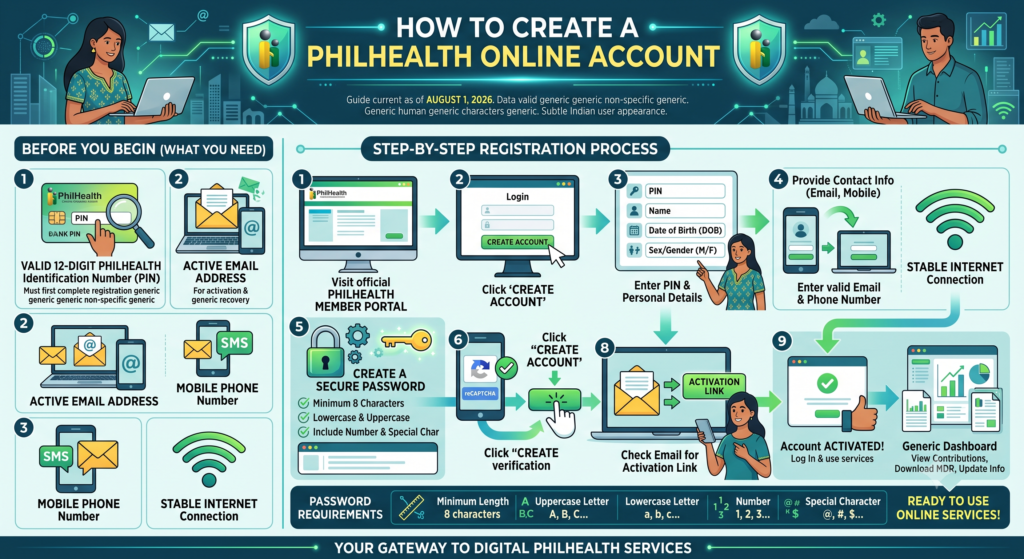
Creating a PhilHealth online account allows you to access the Member Portal anytime. Once your account is activated, you can check contribution records, download your Member Data Record (MDR), update eligible information, and use various PhilHealth online services without visiting a branch.
Before starting, make sure you already have a valid 12-digit PhilHealth Identification Number (PIN). If you do not have one yet, you must first complete the PhilHealth registration process and obtain your PIN.
Requirements Before Registration
Prepare the following information before creating your account:
- PhilHealth Identification Number (PIN)
- First name and last name
- Date of birth
- Sex/Gender
- Active email address
- Mobile phone number
- Stable internet connection
| Requirement | Purpose |
|---|---|
| PhilHealth PIN | Identifies your membership record |
| Email Address | Used for account activation and recovery |
| Mobile Number | For account verification |
| Personal Information | Matches your PhilHealth records |
Step-by-Step Account Creation Process
Follow these steps to register your online account:
- Visit the official PhilHealth Member Portal.
- Click Create Account on the login page.
- Enter your PhilHealth Identification Number (PIN).
- Provide your first name, last name, date of birth, and sex.
- Enter your active email address and mobile number.
- Create a secure password.
- Complete the CAPTCHA verification.
- Click Create Account.
- Open the confirmation email sent by PhilHealth.
- Click the activation link to complete registration.
After activation, you can immediately log in and access your account dashboard.
Password Requirements
Your password must meet the security standards required by the Member Portal.
- Minimum length: 8 characters.
- Maximum length: 32 characters.
- Include at least one uppercase letter.
- Include at least one lowercase letter.
- Include at least one number.
- Include at least one special character.
| Example Requirement | Sample |
|---|---|
| Uppercase Letter | A, B, C |
| Lowercase Letter | a, b, c |
| Number | 1, 2, 3 |
| Special Character | @, #, $, % |
6. What If I Forgot My Email and Password in PhilHealth?
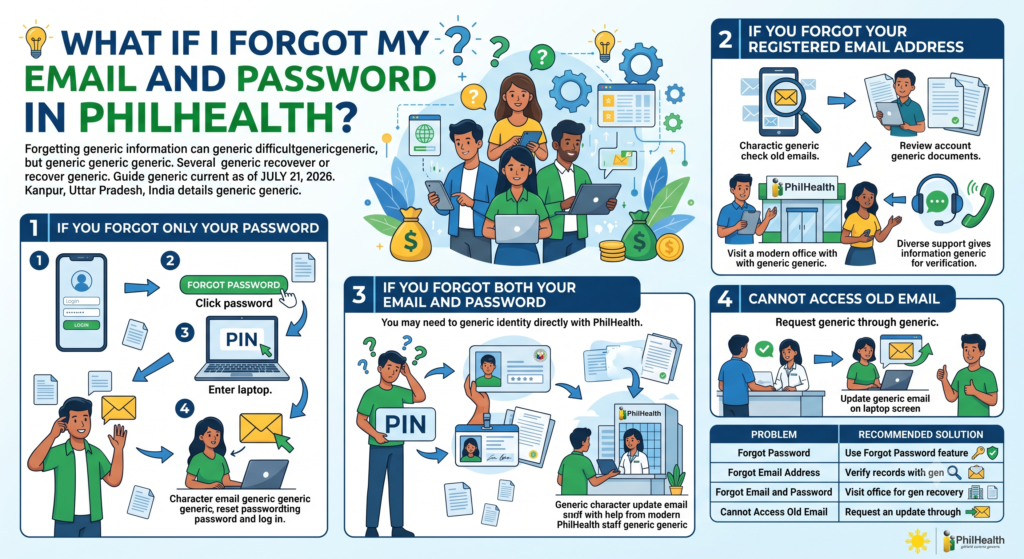
Forgetting both your registered email address and password can make it difficult to access your account, but there are several ways to recover your information.
If You Forgot Only Your Password
- Open the PhilHealth Member Portal login page.
- Click Forgot Password.
- Enter your PhilHealth Identification Number (PIN).
- Follow the instructions sent to your registered email address.
- Create a new password and log in again.
If You Forgot Your Registered Email Address
- Check old emails from PhilHealth in your inbox.
- Review previous account registration records.
- Visit the nearest PhilHealth office for verification assistance.
- Contact PhilHealth support and provide your personal information for identity verification.
If You Forgot Both Your Email and Password
You may need to verify your identity directly with PhilHealth.
- Prepare your PhilHealth Identification Number (PIN).
- Bring a valid government-issued ID.
- Visit the nearest PhilHealth office for account verification.
- Request assistance in updating your registered email address.
- Once your email is updated, you can reset your password and regain access to your account.
| Problem | Recommended Solution |
|---|---|
| Forgot Password | Use the Forgot Password feature |
| Forgot Email Address | Verify records with PhilHealth |
| Forgot Email and Password | Visit a PhilHealth office for account recovery |
| Cannot Access Old Email | Request an email update through PhilHealth |
Tip: Keep a record of your registered email address, PhilHealth PIN, and password in a secure location. This can save time if you ever need to recover your account in the future.
7. PhilHealth Employer Login (EPRS): How to Access Your Employer Account
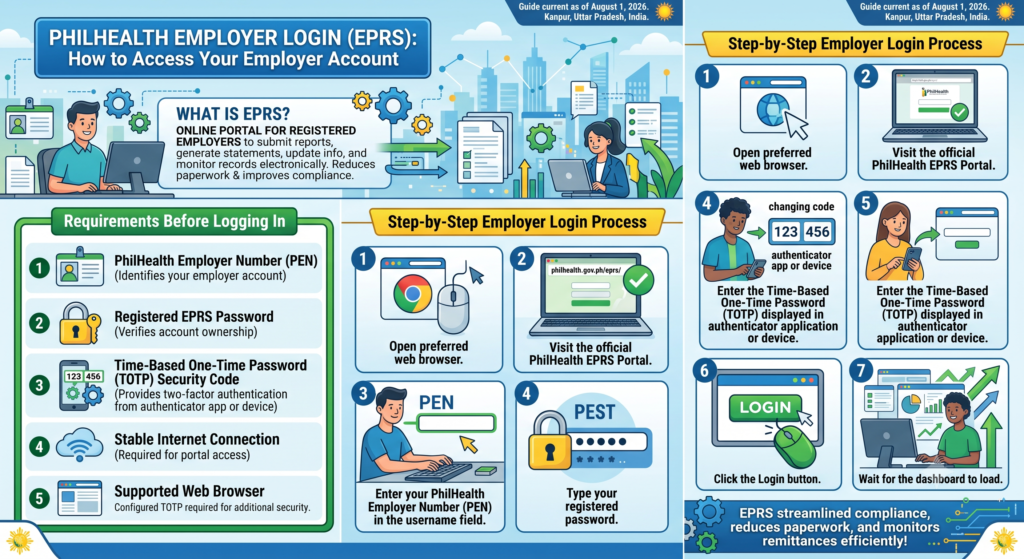
The PhilHealth Electronic Premium Remittance System (EPRS) is an online portal created for registered employers. It allows companies to submit employee contribution reports, generate payment statements, update employee information, and monitor remittance records electronically. Using EPRS reduces paperwork and helps employers comply with PhilHealth contribution requirements more efficiently.
To access the portal, employers must have an active PhilHealth Employer Number (PEN), a registered password, and a configured Time-Based One-Time Password (TOTP) for additional account security.
Requirements Before Logging In
Before signing in to the EPRS portal, make sure you have the following information ready.
- PhilHealth Employer Number (PEN)
- Registered EPRS password
- Time-Based One-Time Password (TOTP) from your authenticator app or device
- Stable internet connection
- Supported web browser
| Requirement | Purpose |
|---|---|
| PhilHealth Employer Number (PEN) | Identifies your employer account |
| Password | Verifies account ownership |
| TOTP Security Code | Provides two-factor authentication |
| Internet Connection | Required for portal access |
Step-by-Step Employer Login Process
Follow these steps to access your employer dashboard.
- Open your preferred web browser.
- Visit the official PhilHealth EPRS Portal.
- Enter your PhilHealth Employer Number (PEN) in the username field.
- Type your registered password.
- Enter the Time-Based One-Time Password (TOTP) displayed in your authenticator application or device.
- Click the Login button.
- Wait for the dashboard to load.
After signing in successfully, you can manage employee records, submit remittance reports, and perform other employer-related transactions.
Features Available in the EPRS Dashboard
The Employer Portal offers several useful services for registered businesses.
- View and update employer profile information.
- Add, edit, or remove employee records.
- Prepare monthly premium contribution reports.
- Generate Statements of Premium Account (SPA).
- Submit contribution reports electronically.
- Monitor payment and remittance status.
- Review previous transaction history.
| Dashboard Feature | Description |
|---|---|
| Employer Information | Manage company profile details |
| Employee Management | Maintain employee membership records |
| Remittance Management | Prepare and submit monthly reports |
| Payment Management | Generate Statements of Premium Account (SPA) |
| Transaction Monitoring | Track payment and report status |
Tips for a Successful Employer Login
These recommendations can help prevent login issues and keep your employer account secure.
- Keep your PhilHealth Employer Number (PEN) confidential.
- Use a strong password and update it regularly.
- Keep your TOTP authenticator device accessible.
- Always log out after completing your transactions.
- Verify all remittance details before submitting reports.
- Save copies of payment confirmations for future reference.
Tip: If you cannot access your EPRS account because of an incorrect password or TOTP verification issue, use the official account recovery process or contact PhilHealth support before making repeated login attempts, as multiple failed attempts may temporarily restrict access to your employer account.
8. PhilHealth Login for OFWs
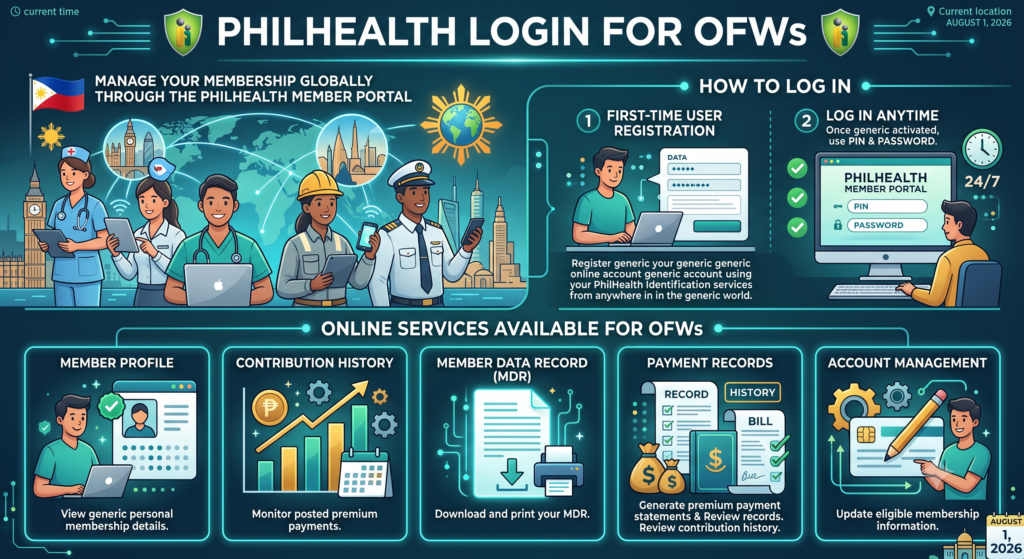
Overseas Filipino Workers (OFWs) can conveniently manage their PhilHealth membership through the PhilHealth Member Portal. After creating an online account, OFWs can review their membership details, monitor contribution records, download their Member Data Record (MDR), and access various online services from anywhere in the world. This eliminates the need to visit a PhilHealth office in person for many routine transactions.
If you are using the portal for the first time, you must first register your online account using your PhilHealth Identification Number (PIN). Once your account is activated, you can log in anytime using your PIN and password.
Online Services Available for OFWs
After signing in to the Member Portal, OFWs can access several useful services.
- View membership information.
- Check monthly contribution history.
- Download and print the Member Data Record (MDR).
- Generate premium payment statements.
- Monitor payment records.
- Update eligible membership information.
| Online Service | Purpose |
|---|---|
| Member Profile | View personal membership details |
| Contribution History | Monitor posted premium payments |
| Member Data Record (MDR) | Download and print your MDR |
| Payment Records | Review contribution history |
| Account Management | Update eligible account information |
How to Create an Online Account
If you have not yet registered for online access, follow these steps.
- Prepare your PhilHealth Identification Number (PIN).
- Visit the official PhilHealth Member Portal.
- Click Create Account.
- Enter your personal information.
- Provide your email address and mobile number.
- Create a secure password.
- Verify your account through the activation email.
- Log in using your PIN and password.
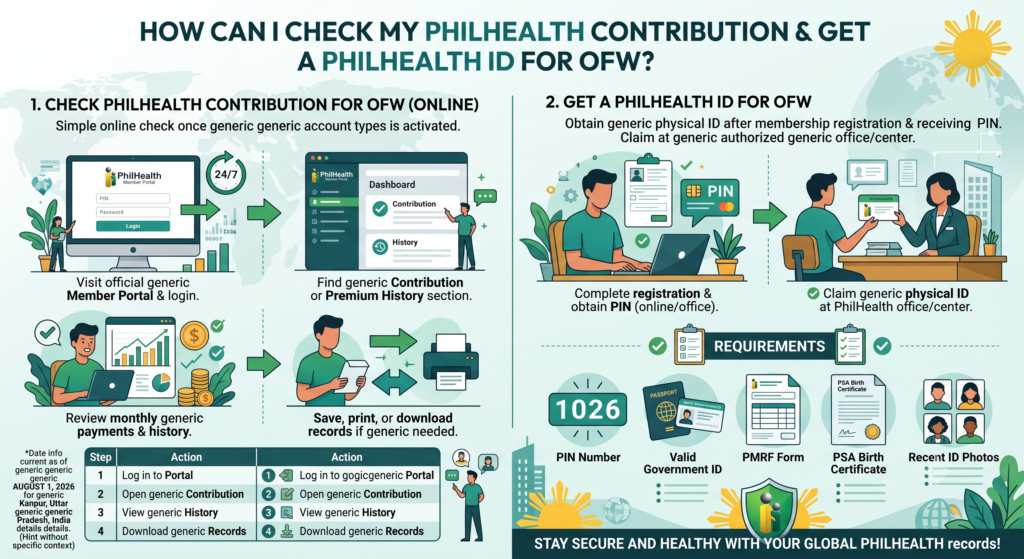
9. How Can I Check My PhilHealth Contribution for OFW?
Checking your PhilHealth contributions online is simple once your Member Portal account has been activated.
Steps to Check Your Contributions
- Visit the official PhilHealth Member Portal.
- Log in using your PhilHealth Identification Number (PIN) and password.
- Open your account dashboard.
- Navigate to the Contribution or Premium History section.
- Review your monthly payment records and contribution history.
- Download or print your records if needed.
| Step | Action |
|---|---|
| 1 | Log in to the Member Portal |
| 2 | Open the Contribution section |
| 3 | View payment history |
| 4 | Download or print your records |
10. How to Get a PhilHealth ID for OFW?
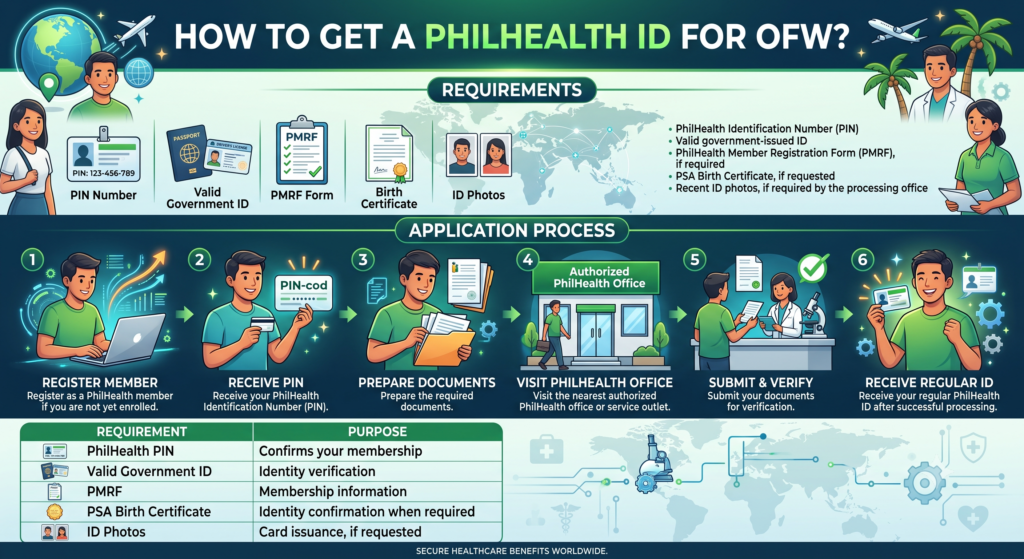
OFWs can obtain a PhilHealth ID after completing their PhilHealth membership registration and receiving their PhilHealth Identification Number (PIN). While some registration steps can be completed online, the physical ID is generally claimed through an authorized PhilHealth office or service center.
Requirements
- PhilHealth Identification Number (PIN)
- Valid government-issued ID
- PhilHealth Member Registration Form (PMRF), if required
- PSA Birth Certificate, if requested
- Recent ID photos, if required by the processing office
Application Process
- Register as a PhilHealth member if you are not yet enrolled.
- Receive your PhilHealth Identification Number (PIN).
- Prepare the required documents.
- Visit the nearest authorized PhilHealth office or service outlet.
- Submit your documents for verification.
- Receive your regular PhilHealth ID after successful processing.
| Requirement | Purpose |
|---|---|
| PhilHealth PIN | Confirms your membership |
| Valid Government ID | Identity verification |
| PMRF | Membership information |
| PSA Birth Certificate | Identity confirmation when required |
| ID Photos | Card issuance, if requested |
Tip: Before visiting a PhilHealth office, make sure your online membership information is complete and accurate. This helps speed up ID processing and reduces the chances of delays during verification.
11. PhilHealth Login for Healthcare Providers (IHCP Portal)
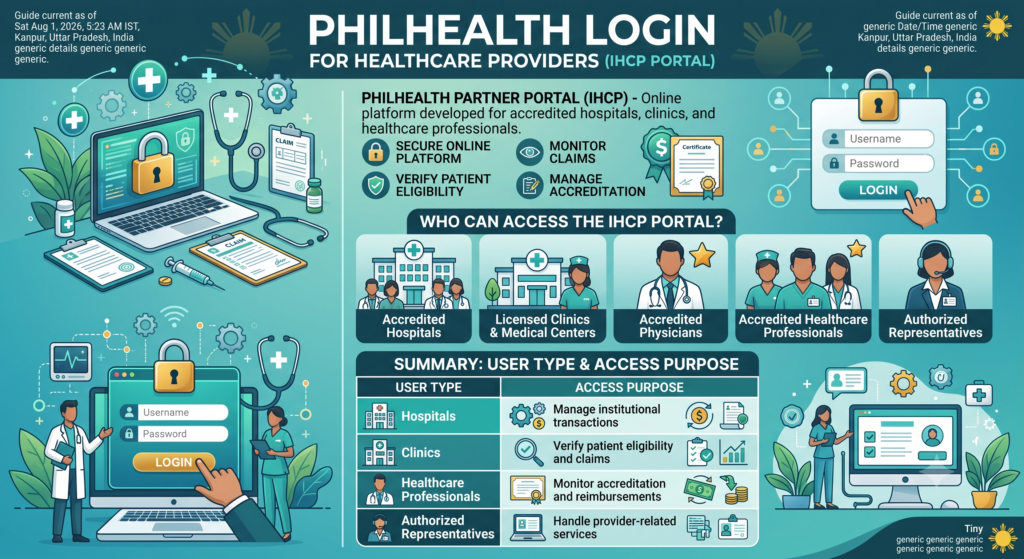
The PhilHealth Partner Portal is an online platform developed for accredited hospitals, clinics, and healthcare professionals. It allows healthcare providers to access PhilHealth services securely, verify patient eligibility, monitor claims, and manage accreditation-related information. Only authorized institutional partners and accredited professionals can access this portal using their approved login credentials.
Healthcare providers must first complete the required registration process before receiving access to the online system. Once approved, they can log in anytime to manage their PhilHealth transactions more efficiently.
Who Can Access the IHCP Portal?
The portal is available only to accredited healthcare institutions and professionals.
- Accredited hospitals.
- Licensed clinics and medical centers.
- Accredited physicians.
- Healthcare professionals with active PhilHealth accreditation.
- Authorized representatives of participating healthcare facilities.
| User Type | Access Purpose |
|---|---|
| Hospitals | Manage institutional transactions |
| Clinics | Verify patient eligibility and claims |
| Healthcare Professionals | Monitor accreditation and reimbursements |
| Authorized Representatives | Handle provider-related services |
How to Log In to the PhilHealth Partner Portal
Follow these steps to access your provider account.
- Open the official PhilHealth Partner Portal.
- Enter your assigned PhilHealth Number or registered email address.
- Type your account password.
- Click the Login button.
- Access your provider dashboard after successful authentication.
If you cannot remember your password, use the Forgot Password option available on the login page to recover your account.
Features Available After Login
The Partner Portal provides several online tools for accredited healthcare providers.
- Manage provider profile information.
- Verify patient eligibility.
- Monitor claim submissions.
- Track reimbursement status.
- View accreditation details.
- Update eligible provider information.
- Access transaction history.
| Portal Feature | Description |
|---|---|
| Provider Profile | View and update account information |
| Patient Eligibility | Verify member eligibility |
| Claims Monitoring | Track submitted healthcare claims |
| Accreditation Status | Review accreditation information |
| Reimbursement Records | Monitor payment status |
12. Requirements for New Institutional Healthcare Providers (IHCP)
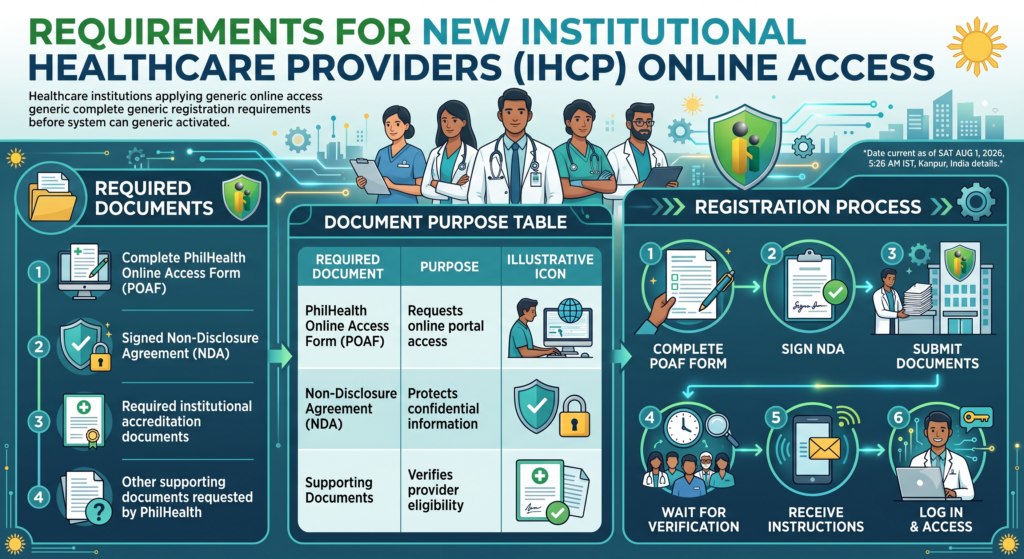
Healthcare institutions that are applying for online access must complete several registration requirements before the system can be activated.
Required Documents
Prepare the following documents before submitting your application.
- Completed PhilHealth Online Access Form (POAF).
- Signed Non-Disclosure Agreement (NDA).
- Required institutional accreditation documents.
- Other supporting documents requested by PhilHealth.
| Required Document | Purpose |
|---|---|
| PhilHealth Online Access Form (POAF) | Requests online portal access |
| Non-Disclosure Agreement (NDA) | Protects confidential information |
| Supporting Documents | Verifies provider eligibility |
Registration Process
After preparing the required documents, complete the registration by following these steps.
- Complete the PhilHealth Online Access Form (POAF).
- Sign the required Non-Disclosure Agreement (NDA).
- Submit all required documents to the nearest PhilHealth Regional Office or Local Health Insurance Office.
- Wait for document verification and approval.
- Receive instructions for online portal activation.
- Log in using your assigned credentials after activation.
Tip: Before submitting your application, review all documents carefully to ensure they are complete and properly signed. Accurate submissions help avoid delays during the verification and system activation process.
13. How to Download and Print Your PhilHealth MDR Online
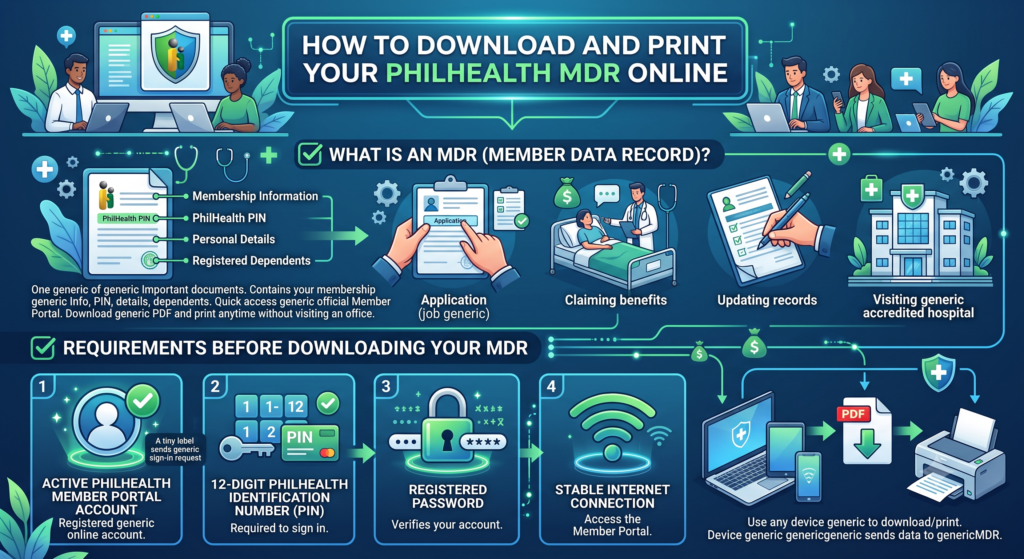
Your Member Data Record (MDR) is one of the most important documents in your PhilHealth account. It contains your membership information, PhilHealth Identification Number (PIN), personal details, and registered dependents. You may need a copy of your MDR when applying for a job, claiming healthcare benefits, updating your records, or visiting a PhilHealth-accredited hospital.
The quickest way to obtain your MDR is through the official PhilHealth Member Portal. Once you have an active online account, you can download the document as a PDF and print it anytime without visiting a PhilHealth office.
Requirements Before Downloading Your MDR
Before accessing your Member Data Record, prepare the following:
- Active PhilHealth Member Portal account
- 12-digit PhilHealth Identification Number (PIN)
- Registered password
- Stable internet connection
- Computer, tablet, or smartphone
| Requirement | Purpose |
|---|---|
| PhilHealth Identification Number (PIN) | Required to sign in |
| Registered Password | Verifies your account |
| Internet Connection | Access the Member Portal |
| Device | Download or print the MDR |
Steps to Access the Member Portal
Follow these steps before downloading your MDR.
- Visit the official PhilHealth website.
- Select Online Services.
- Open the Member Portal (Register/Login).
- If you are a new user, click Create Account.
- Complete your account registration if necessary.
- Activate your account through the verification email.
- Log in using your PhilHealth Identification Number (PIN) and password.
How to Download Your Member Data Record (MDR)
After logging into your account, you can generate your MDR within a few minutes.
- Open your Member Portal dashboard.
- Navigate to your member profile or MDR Printing section.
- Review your personal information for accuracy.
- Generate your Member Data Record.
- Wait for the PDF document to open.
- Click the Download icon.
- Save the PDF file to your computer or mobile device.
How to Print Your PhilHealth MDR
Once the PDF has been downloaded, printing is straightforward.
- Open the saved PDF document.
- Connect your printer if necessary.
- Click the Print button.
- Select your preferred printer.
- Choose your print settings.
- Print a hard copy for future use.
| Action | Result |
|---|---|
| Log in to Member Portal | Access your membership records |
| Generate MDR | Create a PDF copy |
| Download PDF | Save the file on your device |
| Print Document | Obtain a physical copy for official use |
Tips Before Printing Your MDR
These simple tips can help you avoid delays when using your Member Data Record.
- Check that your personal information is correct before printing.
- Save a digital copy as a backup.
- Print on clean white paper for better readability.
- Keep multiple copies if you frequently submit employment or healthcare documents.
- Update your membership information first if any details are incorrect.
Tip: If you cannot find the MDR Printing option after logging in, verify that your online account has been successfully activated and your membership information is complete before trying again.
14. PhilHealth Login Security Tips to Protect Your Account
Your PhilHealth account contains important personal and membership information, so keeping it secure should always be a priority. A strong password, safe browsing habits, and careful handling of your login credentials can help protect your account from unauthorized access. Whether you use the PhilHealth Member Portal or other PhilHealth online systems, following basic security practices will reduce the risk of fraud and identity theft.
You should also make it a habit to access only official PhilHealth websites and never share your login information with anyone. Even a single mistake, such as clicking a fake login link, can put your account at risk.
Use Only the Official PhilHealth Website
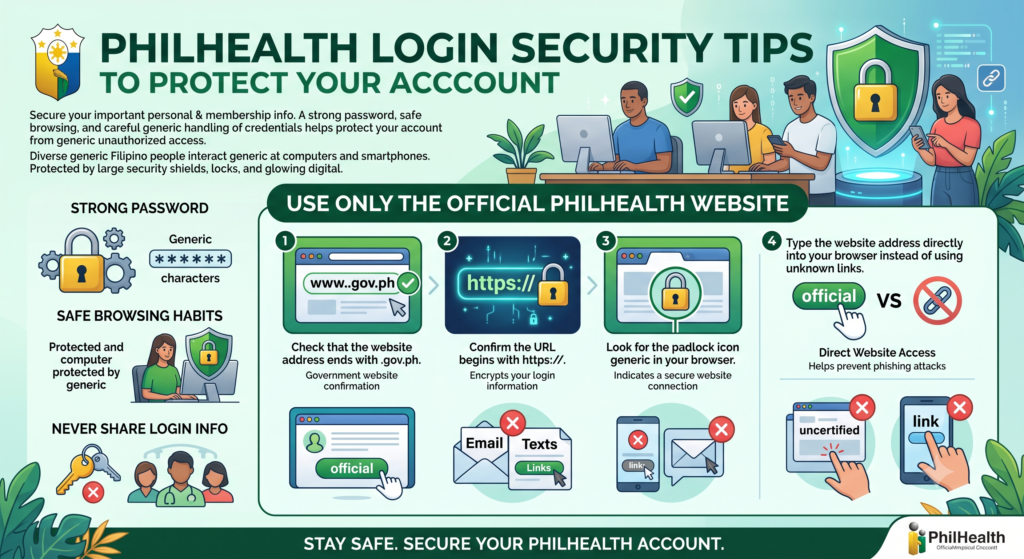
Always verify that you are accessing the genuine PhilHealth portal before entering your login details.
- Check that the website address ends with .gov.ph.
- Confirm the URL begins with https://.
- Look for the padlock icon in your browser.
- Type the website address directly into your browser instead of using unknown links.
- Avoid logging in through links received in unsolicited emails or text messages.
| Security Check | Why It Matters |
|---|---|
| .gov.ph Domain | Confirms you are visiting the official government website |
| HTTPS Connection | Encrypts your login information |
| Padlock Icon | Indicates a secure website connection |
| Direct Website Access | Helps prevent phishing attacks |
Create a Strong Password
A secure password makes it much harder for unauthorized users to access your account.
- Use at least 8 characters.
- Include uppercase letters.
- Include lowercase letters.
- Add numbers.
- Use special symbols.
- Avoid using birthdays, names, or simple words.
- Change your password regularly.
| Password Tip | Recommendation |
|---|---|
| Minimum Length | 8 characters |
| Uppercase Letters | At least one |
| Lowercase Letters | At least one |
| Numbers | At least one |
| Special Characters | At least one symbol |
Protect Your Login Credentials
Your login information should always remain private.
- Never share your PhilHealth Identification Number (PIN).
- Never give your password to anyone.
- Do not disclose One-Time Passwords (OTP) or verification codes.
- Avoid sending account information through social media or messaging apps.
- Log out after using your account, especially on shared computers.
Use Two-Factor Authentication When Available
Some PhilHealth systems, such as the Electronic Premium Remittance System (EPRS), support additional security through Time-Based One-Time Password (TOTP) authentication.
- Enable TOTP if your account supports it.
- Use trusted authenticator apps.
- Keep your authentication device secure.
- Store backup recovery codes safely if provided.
Additional Security Tips
Following these simple practices can further improve your account security.
- Keep your browser updated.
- Install trusted antivirus software.
- Avoid using public Wi-Fi when accessing your account.
- Review your account activity regularly.
- Update your contact information so you can recover your account if necessary.
| Best Practice | Benefit |
|---|---|
| Use Official Website | Reduces phishing risks |
| Strong Password | Prevents unauthorized access |
| Keep Credentials Private | Protects personal information |
| Enable TOTP | Adds an extra layer of security |
| Log Out After Use | Prevents unauthorized access on shared devices |
Tip: If you notice unusual account activity or believe your login credentials have been compromised, change your password immediately and contact PhilHealth support through its official channels for further assistance.
15. Common PhilHealth Login Problems and How to Fix Them
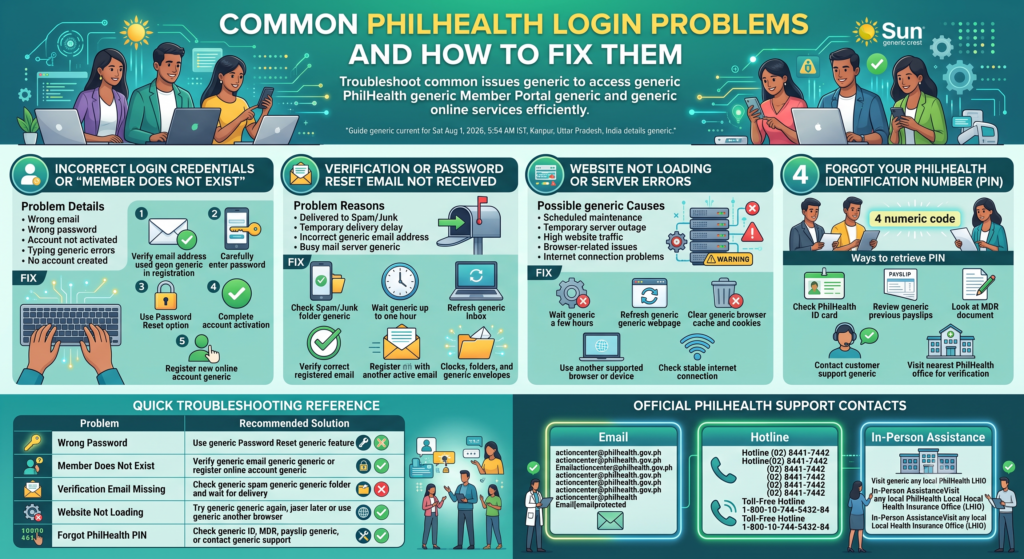
Although the PhilHealth Member Portal is designed to make online services more convenient, users may occasionally encounter login problems. The most common issues include incorrect login credentials, missing verification emails, forgotten PhilHealth Identification Numbers (PIN), and temporary website outages. Fortunately, most of these problems can be resolved by following a few simple troubleshooting steps.
If the issue continues after trying the recommended solutions, you can contact PhilHealth through its official support channels or visit the nearest PhilHealth Local Health Insurance Office (LHIO) for assistance.
Incorrect Login Credentials or “Member Does Not Exist”
This is one of the most common login errors encountered by members.
Possible causes:
- Incorrect email address entered.
- Wrong password.
- Online account has not been activated.
- Typing errors in login credentials.
- No online account has been created yet.
How to fix it:
- Verify that you are using the same email address used during registration.
- Carefully enter your password.
- Use the Password Reset option if you cannot remember your password.
- Complete your account activation if you have not done so.
- Register a new online account if your membership has never been linked to the Member Portal.
Verification or Password Reset Email Not Received
Sometimes activation or password reset emails may take longer to arrive.
Possible reasons:
- Email was delivered to the Spam or Junk folder.
- Temporary delay in email delivery.
- Incorrect email address during registration.
- Mail server is temporarily busy.
How to fix it:
- Check your Spam or Junk folder.
- Wait for up to one hour.
- Refresh your inbox.
- Verify that your registered email address is correct.
- If necessary, register using another active email address.
Website Not Loading or Server Errors
The PhilHealth website may occasionally become unavailable due to maintenance or heavy user traffic.
Possible causes:
- Scheduled maintenance.
- Temporary server outage.
- High website traffic.
- Browser-related issues.
- Internet connection problems.
How to fix it:
- Wait a few hours before trying again.
- Refresh the webpage.
- Clear your browser cache and cookies.
- Use another supported web browser.
- Try logging in from another device.
- Check that your internet connection is stable.
Forgot Your PhilHealth Identification Number (PIN)
Without your PhilHealth Identification Number (PIN), you cannot access your online account.
Ways to retrieve your PIN:
- Check your PhilHealth ID card.
- Review your previous payslips if you are employed.
- Look at your Member Data Record (MDR).
- Contact PhilHealth customer support.
- Visit the nearest PhilHealth office for identity verification.
| Problem | Recommended Solution |
|---|---|
| Wrong Password | Use the Password Reset feature |
| Member Does Not Exist | Verify your email or register an online account |
| Verification Email Missing | Check the spam folder and wait for delivery |
| Website Not Loading | Try again later or use another browser |
| Forgot PhilHealth PIN | Check your ID, MDR, payslip, or contact PhilHealth |
Official PhilHealth Support Contacts
If you are unable to resolve your login issue using the methods above, you can request assistance through PhilHealth’s official support channels.
| Support Channel | Contact Information |
|---|---|
| actioncenter@philhealth.gov.ph | |
| [email protected] | |
| Hotline | (02) 8441-7442 |
| Toll-Free Hotline | 1-800-10-744-5432-84 |
| In-Person Assistance | Visit any local PhilHealth Local Health Insurance Office (LHIO) |
Tip: Before contacting PhilHealth support, prepare your PhilHealth Identification Number (PIN), registered email address, and a valid government-issued ID. Having these details ready can help speed up the verification and account recovery process.
Also Read:
- PhilHealth Portal Login & Registration 2026: Complete Guide to Membership, Benefits, Contributions & Online Services
- PhilHealth ID: Your Complete July 2026 Guide
- PhilHealth Employer Guide 2026: Registration & Compliance
- PhilHealth Online Registration: Why 90% of Filipinos Get This One Step Wrong
- PhilHealth Contribution 2026: Rates, Table, Calculator & Payment Guide
- PhilHealth Online Appointment 2026: Step-by-Step Booking Secrets Revealed
- PhilHealth Requirements 2026: The One Document Everyone Forgets
Frequently Asked Questions About PhilHealth Login
Why can’t I log in to my PhilHealth account?
You may be unable to log in because of an incorrect PhilHealth Identification Number (PIN), wrong password, or an unactivated online account. Temporary website maintenance or browser issues can also prevent access. Verify your login details, use the password recovery option if needed, and try again after some time if the portal is unavailable.
What is the 3 6 rule for PhilHealth?
The 3/6 rule generally refers to having at least three (3) months of premium contributions within the last six (6) months before hospitalization for certain benefit claims. Eligibility requirements may vary depending on current PhilHealth policies and the type of membership. Members should always check the latest contribution guidelines before filing claims.
What is the main purpose of the PhilHealth Member Portal?
The PhilHealth Member Portal allows members to manage their accounts online without visiting a branch. You can check your membership information, view contribution history, download your Member Data Record (MDR), update eligible information, and access other digital services through a secure online account.
How do I know if my PhilHealth account is active?
You can check your account status by logging into the PhilHealth Member Portal and viewing your membership profile and contribution records. If you cannot access the portal, you may contact PhilHealth or visit a Local Health Insurance Office (LHIO) for membership verification.
How can I activate my PhilHealth account?
After creating your online account, PhilHealth sends an activation email to your registered email address. Open the email and click the activation link to complete the registration process. Once activated, you can log in using your PhilHealth Identification Number (PIN) and password.
How do you know if you are already registered in Yakap PhilHealth?
Log in to your PhilHealth Member Portal and check your membership profile or primary care provider information. If you are enrolled, your registered YAKAP provider or primary care details will be displayed. You may also verify your enrollment by contacting PhilHealth.
Do I need to register for Yakap PhilHealth?
Yes. Eligible members usually need to enroll with a participating YAKAP or primary care provider to access the program’s healthcare services. Registration ensures that your assigned provider can deliver covered consultations, laboratory services, and other available benefits.
Can I get a PhilHealth Member Data Record online?
Yes. You can download and print your Member Data Record (MDR) through the PhilHealth Member Portal after logging into your account. The document is available in PDF format and can be saved or printed whenever needed.
Is the old PhilHealth ID still valid?
Yes. The regular paper PhilHealth ID remains valid for membership identification and healthcare transactions. As long as your membership information is correct and your account is active, you can continue using your existing PhilHealth ID.
What is the new ID for PhilHealth 2026?
PhilHealth continues to issue its regular paper ID to qualified members, while some branches also offer an optional PVC-type card. The availability of the PVC version may vary depending on the issuing office. Both cards are linked to the same PhilHealth membership record.
Can I print my PhilHealth digital ID?
You can print your Member Data Record (MDR) and other downloadable documents from the Member Portal. However, printing a digital copy does not replace the official physical PhilHealth ID issued by PhilHealth.
Do I need to renew my PhilHealth ID?
No. A PhilHealth ID generally does not require periodic renewal. If your personal information changes or your card is lost or damaged, you should request an update or replacement through the nearest PhilHealth office.