
PhilHealth Online Registration Guide 2026
Standing in line at a government office isn’t anyone’s idea of a good afternoon. Thankfully, PhilHealth online registration means you can skip that entirely and sign up from your phone, your laptop, or wherever you happen to be. Whether you’re employed, self-employed, or working overseas as an OFW, this process was built to save you time and hassle.
But let’s be honest, plenty of people still get stuck somewhere along the way, whether it’s a confusing form or a missing document. This guide breaks down everything you need, from valid ID requirements to the actual step-by-step process, so you can register once and get it right.

2. What Is PhilHealth?
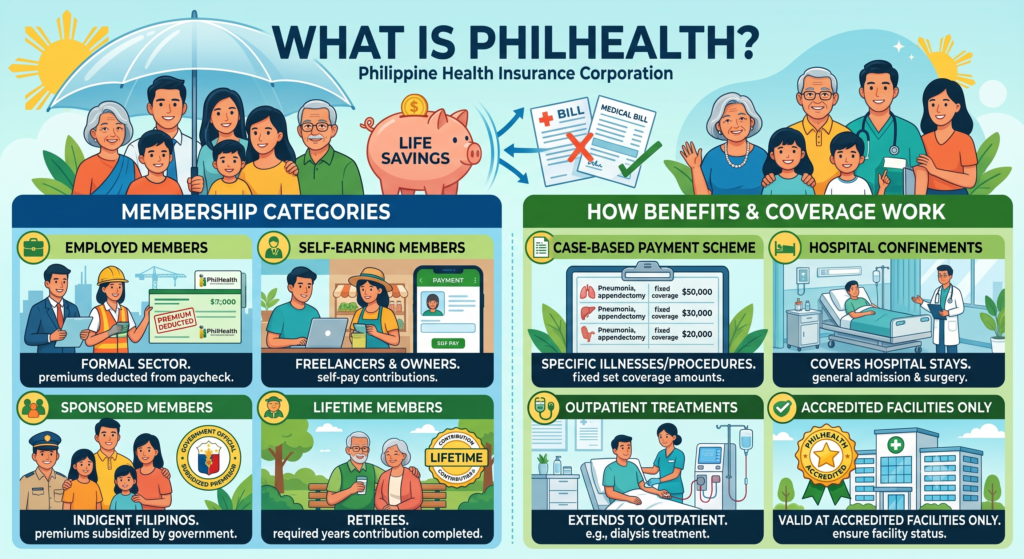
PhilHealth, officially known as the Philippine Health Insurance Corporation, is the government agency behind the country’s National Health Insurance Program. Its main job? Shielding Filipinos from the financial gut-punch that comes with getting sick. Whether it’s a hospital stay, a surgery, or maternity care, PhilHealth steps in so your entire life savings don’t disappear in one trip to the ER.
The program runs on a few key pillars, each working together to keep coverage accessible.
Membership categories include:
- Employed members — workers in the formal sector, with premiums deducted straight from their paycheck
- Self-earning members — freelancers, business owners, and other self-employed individuals who pay their own contributions
- Sponsored members — indigent Filipinos whose premiums are subsidized by the government
- Lifetime members — retirees who’ve already completed the required years of contribution
How benefits and coverage work:
- Uses a case-based payment scheme, meaning specific illnesses or procedures come with a set coverage amount
- Covers hospital confinements and surgeries
- Extends to outpatient treatments like dialysis
- Applies only at PhilHealth-accredited facilities
How contributions get paid:
| Member Type | Payment Method |
|---|---|
| Employed | Automatically deducted from salary |
| Self-employed/Voluntary | Paid directly at accredited payment centers |
Want to register or check specific benefit rates? The official PhilHealth Online Services portal has everything you need to get started.
3. What Is PhilHealth Online Registration?
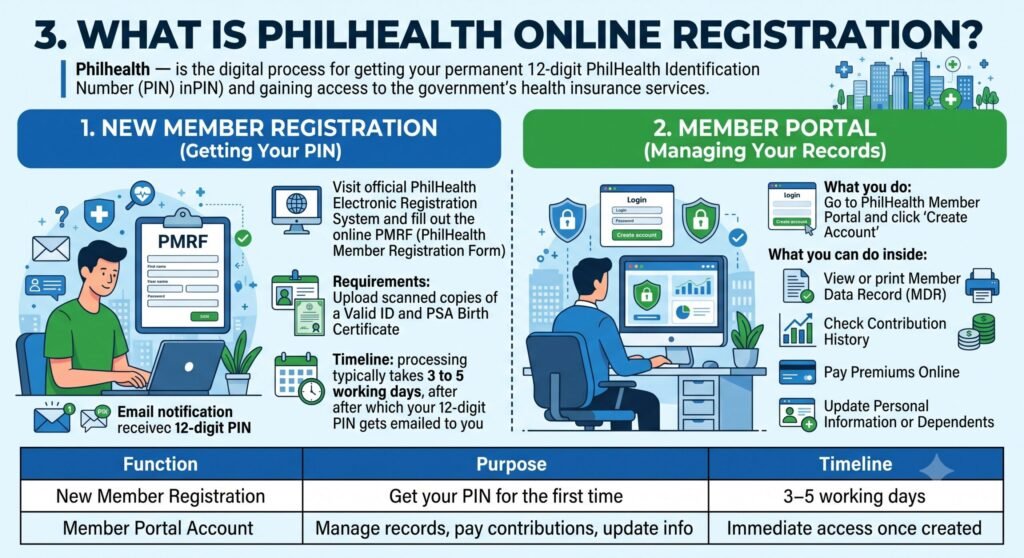
PhilHealth online registration is the digital process for getting your permanent 12-digit PhilHealth Identification Number (PIN) and gaining access to the government’s health insurance services. No more standing in line at a branch just to apply or check your records.
The whole process actually splits into two separate functions, and understanding the difference matters.
1. New Member Registration (Getting Your PIN)
If you don’t have a PhilHealth number yet, this is where you start:
- What you do — visit the official PhilHealth Electronic Registration System and fill out the online PMRF (PhilHealth Member Registration Form)
- Requirements — upload scanned copies of a valid ID and your PSA Birth Certificate
- Timeline — processing typically takes 3 to 5 working days, after which your 12-digit PIN gets emailed to you
2. Member Portal (Managing Your Records)
Once you’ve got your PIN, the next step is setting up your online account:
- What you do — go to the PhilHealth Member Portal and click “Create Account”
- What you can do inside — view or print your Member Data Record (MDR), check your contribution history, pay premiums online, and update your personal information or dependents
| Function | Purpose | Timeline |
|---|---|---|
| New Member Registration | Get your PIN for the first time | 3–5 working days |
| Member Portal Account | Manage records, pay contributions, update info | Immediate access once created |
Keeping your profile updated and your MDR ready to print isn’t just a nice-to-have. It genuinely matters when you’re processing a hospitalization or claiming benefits, since hospitals often ask for it on the spot.
4. Benefits of Registering for PhilHealth Online
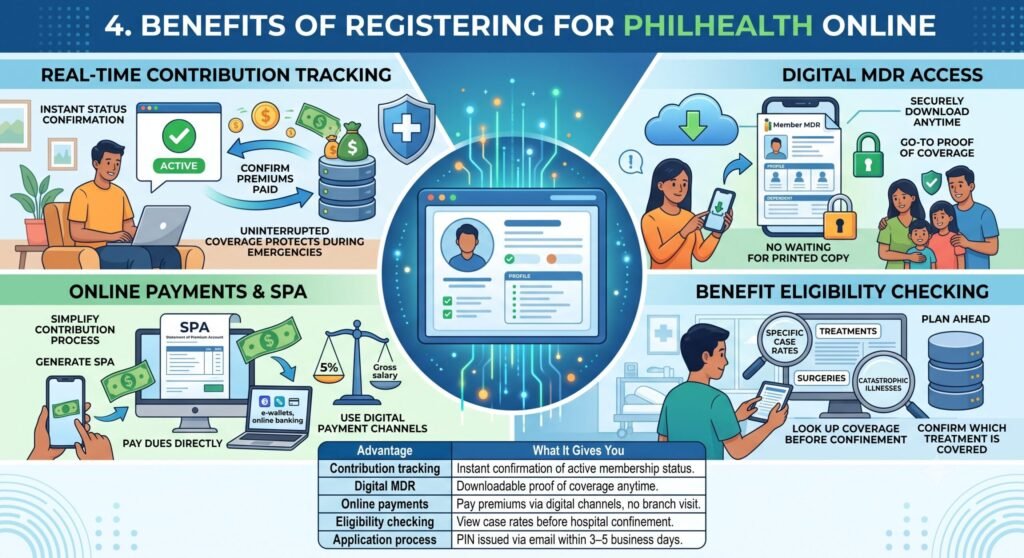
Signing up through PhilHealth online registration doesn’t just save you a trip. It genuinely changes how you interact with your entire membership. You get instant access to your PIN, real-time contribution tracking, and a digital MDR you can pull up whenever you need it, whether that’s for a hospital admission or just peace of mind.
Here’s what actually makes the digital route worth choosing.
Real-time contribution tracking means you can instantly confirm whether your premiums are paid and your membership status is active. This matters more than people realize, since uninterrupted coverage is exactly what protects you during a medical emergency.
Digital MDR access lets you download your Member Data Record securely, anytime you need it. Think of it as your go-to proof of coverage for yourself and your dependents, no waiting for a printed copy from a branch.
Online payments simplify the whole contribution process. Generate a Statement of Premium Account and pay your monthly dues, currently pegged at 5% of your gross salary, directly from your phone or laptop through integrated digital payment channels.
Benefit eligibility checking helps you plan ahead. Before any confinement, you can look up specific case rates and confirm exactly which treatments, surgeries, or catastrophic illnesses are actually covered.
Convenient application cuts out the branch queue entirely. Upload your supporting documents, like your PSA Birth Certificate, and your official PIN arrives by email within 3 to 5 business days.
| Advantage | What It Gives You |
|---|---|
| Contribution tracking | Instant confirmation of active membership status |
| Digital MDR | Downloadable proof of coverage anytime |
| Online payments | Pay premiums via digital channels, no branch visit |
| Eligibility checking | View case rates before hospital confinement |
| Application process | PIN issued via email within 3–5 business days |
5. PhilHealth Membership Categories Explained
PhilHealth groups its members into different categories based on their employment status, source of income, and eligibility for government assistance. Although the Universal Health Care (UHC) Act considers all Filipinos eligible for health coverage, members are still classified into specific groups for contribution and benefit administration. Understanding your membership category helps you determine who pays your premiums and how your account is managed.
Formal Economy Members
These members work for government agencies or private companies where PhilHealth contributions are shared between the employee and employer.
Who belongs to this category?
- Employees in private companies
- Government workers
- Regular salaried employees
- Workers whose employers remit monthly PhilHealth contributions
Informal Economy Members
Individuals who earn income independently fall under the informal economy category. They are responsible for paying their own PhilHealth contributions.
Examples include:
- Self-employed individuals
- Freelancers
- Small business owners
- Market vendors
- Independent professionals
Overseas Filipino Workers (OFWs)
PhilHealth also covers Filipinos working abroad. Depending on their employment type, they are required to maintain their membership and contribution records.
This category includes:
- Land-based OFWs
- Sea-based OFWs
- Overseas contract workers
- Migrant workers maintaining PhilHealth coverage
Government-Supported Membership Categories
Certain groups receive PhilHealth coverage through government funding or sponsorship programs.
- Senior Citizens – Filipinos aged 60 years and above who qualify under government-supported membership.
- Indigent Members – Families identified by the Department of Social Welfare and Development (DSWD) whose premiums are fully subsidized.
- Sponsored Members – Individuals whose PhilHealth contributions are paid by local government units, private organizations, or other sponsors.
- Lifetime Members – Retired members who have completed at least 120 months of premium contributions and are no longer required to pay monthly premiums.
PhilHealth Membership Categories at a Glance
| Membership Category | Who Is Included | Who Pays the Contributions |
|---|---|---|
| Formal Economy | Government and private-sector employees | Shared by employer and employee |
| Informal Economy | Self-employed individuals, freelancers, vendors, business owners | Member pays the full contribution |
| Overseas Filipino Workers (OFWs) | Land-based and sea-based Filipino workers abroad | Member pays according to applicable rules |
| Senior Citizens | Eligible Filipinos aged 60 and above | Government-funded |
| Indigent Members | Qualified low-income families identified by the DSWD | Fully subsidized by the government |
| Sponsored Members | Individuals supported by LGUs, private organizations, or sponsors | Paid by the sponsoring organization |
| Lifetime Members | Retirees with at least 120 months of PhilHealth contributions | No further monthly contributions required |
Why Knowing Your Membership Category Matters
Your PhilHealth membership category determines several important aspects of your coverage.
- Identifies who is responsible for paying your monthly contributions.
- Helps you understand your registration and updating requirements.
- Determines how your premiums are collected and recorded.
- Makes it easier to access PhilHealth benefits and online services.
- Helps ensure your membership information remains accurate and up to date.
6. Eligibility Criteria for Online Registration
PhilHealth online registration is available to most individuals who are eligible to become members of the National Health Insurance Program. Filipino citizens can register regardless of their employment status, while qualified foreign nationals who legally reside and earn income in the Philippines may also apply. Before starting the application, ensure you have a valid email address, accurate personal information, and digital copies of the required documents.
If you already have a PhilHealth Identification Number (PIN), you should not submit a new registration because the PIN is issued only once and remains valid for life.
Who Is Eligible to Apply?
The following individuals can register through the PhilHealth online system:
- Filipino citizens.
- Foreign nationals with legal residency in the Philippines.
- Individuals with a valid source of income in the Philippines.
- Employees, self-employed individuals, freelancers, and voluntary members.
- First-time applicants who do not yet have a PhilHealth Identification Number (PIN).
Who Should Not Register Again?
Some applicants do not need to complete another online registration.
- Members who already have a PhilHealth Identification Number (PIN).
- Individuals with an existing PhilHealth membership record.
- Members updating their information should use the amendment process instead of creating a new account.
Requirements Before Registering Online
Prepare the following documents and information before starting your application.
- Completely filled-out PhilHealth Member Registration Form (PMRF).
- Scanned copy or clear photo of a valid government-issued ID.
- Philippine Statistics Authority (PSA) Birth Certificate.
- Marriage certificate if updating a married surname.
- Active personal email address.
- Accurate personal and contact information.
| Requirement | Purpose |
|---|---|
| PMRF | Official membership registration form |
| Valid Government ID | Identity verification |
| PSA Birth Certificate | Confirms personal information |
| Marriage Certificate | Supports surname changes when applicable |
| Email Address | Receives registration updates and your PIN |
Important Reminders Before Applying
Keep these points in mind before submitting your online registration.
- Double-check that all personal information is accurate.
- Upload clear and readable copies of your documents.
- Use your own active email address for communication.
- Register only once to avoid duplicate membership records.
- Keep a copy of your submitted documents for future reference.
Tip: If you already have a PhilHealth Identification Number (PIN) but need to update your personal information, use the PhilHealth record amendment process instead of submitting a new online registration application.
7. PhilHealth Online Registration Requirements
Before starting your PhilHealth online registration, make sure you have all the necessary documents and information ready. Preparing everything in advance helps prevent delays and makes the application process smoother. You’ll need to complete the registration form, upload valid identification documents, and provide an active email address to receive your PhilHealth Identification Number (PIN).
Documents Required for Online Registration
Prepare the following before accessing the registration portal:
- A properly completed PhilHealth Member Registration Form (PMRF).
- A clear scanned copy or photo of a valid government-issued ID.
- A PSA Birth Certificate if requested or if you do not have a valid ID available.
- A personal and active email address for registration updates and PIN delivery.
- Accurate personal details, including your full name, birth date, address, and contact information.
| Requirement | Purpose |
|---|---|
| PhilHealth Member Registration Form (PMRF) | Records your personal and membership information |
| Valid Government ID | Confirms your identity during registration |
| PSA Birth Certificate | Serves as an alternative identity document when required |
| Active Email Address | Used to send your PhilHealth Identification Number (PIN) and notifications |
How to Apply for PhilHealth Online
Once you have prepared the required documents, follow these simple steps to complete your online registration.
- Visit the PhilHealth Online NHIP Registration page.
- Complete the online PhilHealth Member Registration Form (PMRF) with accurate personal information.
- Upload clear digital copies of your identification documents.
- Review all the information before submitting your application.
- Submit the registration form and wait 3 to 5 working days for your PhilHealth Identification Number (PIN) to be sent to your registered email address.
Helpful Tips Before You Submit
Keep these reminders in mind to avoid common registration issues.
- Ensure all uploaded documents are clear and readable.
- Double-check your email address to avoid missing important updates.
- Verify that your personal information matches your supporting documents.
- Save a copy or screenshot of your submitted application for future reference.
- Check your spam or junk folder if your PIN email does not appear in your inbox after 3 to 5 working days.
8. Documents Required Before Applying Online
Before you begin your PhilHealth online registration, make sure you have all the required documents and information ready. Preparing these in advance helps make the registration process quicker and reduces the chances of delays or application errors.
Documents and Information You Need
- PhilHealth Member Registration Form (PMRF): Prepare a properly completed digital or scanned copy of the PMRF with accurate personal information.
- Valid Government-Issued ID: Upload a clear scanned copy or photo of an accepted government ID, such as a passport, driver’s license, SSS ID, or UMID.
- PSA Birth Certificate: Keep a scanned copy or clear photo of your PSA-issued Birth Certificate for identity verification when required.
- Active Email Address: Provide a working email address where your registration confirmation and PhilHealth Identification Number (PIN) will be sent.
- Dependent Supporting Documents: If you are registering qualified dependents, prepare the necessary documents, such as a birth certificate for children or a marriage certificate for your spouse.
| Requirement | Purpose |
|---|---|
| PhilHealth Member Registration Form (PMRF) | Contains your personal and membership information for registration |
| Valid Government-Issued ID | Verifies your identity during the application process |
| PSA Birth Certificate | Confirms your personal information when required |
| Active Email Address | Receives your confirmation email and PhilHealth Identification Number (PIN) |
| Dependent Documents | Required when adding eligible family members to your membership |
Tips Before You Register
- Ensure that all uploaded files are clear, complete, and easy to read.
- Double-check that the information on your PMRF matches your supporting documents.
- Use an email address that you can access regularly to receive important updates.
- Keep digital copies of all submitted documents for future reference.
- Review your application carefully before submitting it to avoid processing delays.
9. How to Register for PhilHealth Online (Step-by-Step)
You can register for PhilHealth online by completing the online registration form, uploading the required documents, and waiting for your PhilHealth Identification Number (PIN) to be sent to your email. Once you receive your PIN, you can create a PhilHealth Member Portal account to manage your membership online.
Step-by-Step PhilHealth Online Registration
- Visit the registration portal: Open the PhilHealth Member Portal and select the option for online registration or PIN application.
- Complete the registration form: Fill out the online PhilHealth Member Registration Form (PMRF) with your personal information, address, contact details, and dependent information if applicable. Make sure to use an active email address.
- Upload your documents: Attach a clear scanned copy or photo of your PSA Birth Certificate or a valid government-issued ID.
- Review your application: Double-check all the information you entered to ensure it is accurate before submission.
- Submit your application: Send your completed application online. Processing usually takes 3 to 5 working days, after which your PhilHealth Identification Number (PIN) will be delivered to your registered email address.
| Registration Step | What You Need to Do |
|---|---|
| Visit the Portal | Open the PhilHealth Member Portal and choose the registration option |
| Complete the PMRF | Enter your personal details, contact information, and dependent details if applicable |
| Upload Documents | Submit a valid government-issued ID or PSA Birth Certificate |
| Submit Application | Review your details and send your registration |
| Receive Your PIN | Wait 3 to 5 working days for your PIN via email |
How to Create Your PhilHealth Member Portal Account
After receiving your PhilHealth Identification Number (PIN), you can activate your online account by following these steps:
- Open the account creation page: Go to the PhilHealth Member Portal and select Create Account.
- Enter your personal information: Provide your PIN, full name, date of birth, sex, active mobile number, and email address.
- Create a secure password: Use a password that is 8 to 32 characters long and includes at least:
- One uppercase letter
- One lowercase letter
- One number
- One special character
- Verify your account: Complete any required verification and activate your account using the confirmation email if prompted.
- Log in: Sign in with your PIN and newly created password to access your membership information and online services.
Quick Tips for a Successful Registration
- Use an email address that you check regularly.
- Ensure all uploaded documents are clear and readable.
- Verify that the information on your application matches your official documents.
- Save a copy or screenshot of your registration confirmation for future reference.
- If your PIN email does not arrive after 3 to 5 working days, check your spam or junk folder before contacting PhilHealth support.
10. How to Register as a First-Time Member
If you’re applying for PhilHealth membership for the first time, you can complete your registration either online or by visiting a PhilHealth Local Health Insurance Office (LHIO). Both methods require a completed PhilHealth Member Registration Form (PMRF) and supporting identity documents. Once your application is approved, you’ll receive your PhilHealth Identification Number (PIN), which you’ll use for all future PhilHealth transactions.
Online Registration Process
Follow these steps to register through the online portal:
- Visit the registration portal: Open the PhilHealth Online NHIP Registration page.
- Complete the PMRF: Fill out the online PhilHealth Member Registration Form (PMRF) with your personal information and an active email address.
- Upload your documents: Attach a clear scanned copy or photo of your PSA Birth Certificate or a valid government-issued ID.
- Submit your application: Review all your information carefully before submitting the form.
- Receive your PIN: Wait 3 to 5 working days for your PhilHealth Identification Number (PIN) to arrive in your registered email.
Walk-In Registration Process
If you prefer to register in person, follow these steps:
- Visit a PhilHealth office: Go to the nearest PhilHealth Local Health Insurance Office (LHIO) or PhilHealth Express outlet.
- Submit the required forms: Fill out two (2) copies of the PhilHealth Member Registration Form (PMRF) and present your valid government-issued ID or PSA Birth Certificate.
- Complete verification: Submit your documents to the processing counter for validation.
- Receive your membership details: Once your application is approved, you’ll receive your PhilHealth Identification Number (PIN), Member Data Record (MDR), and your regular paper PhilHealth ID.
| Registration Method | What You’ll Do | Result |
|---|---|---|
| Online Registration | Complete the PMRF, upload your documents, and submit the application | Receive your PIN via email within 3 to 5 working days |
| Walk-In Registration | Submit two PMRF copies and your supporting documents at a PhilHealth office | Receive your PIN, MDR, and paper PhilHealth ID after processing |
Tips for First-Time Applicants
- Prepare all required documents before starting your application.
- Ensure the information on your PMRF matches your identification documents.
- Use an active email address so you can receive your PhilHealth Identification Number (PIN).
- Keep copies of your registration documents and confirmation for future reference.
- If registering in person, bring both the original documents and photocopies whenever possible.
11. How to Create a PhilHealth Member Portal Account
The PhilHealth Member Portal allows members to access their membership records, check contribution history, download their Member Data Record (MDR), and manage their account online. Before creating an account, make sure you already have your PhilHealth Identification Number (PIN), as it is required for registration.
Requirements Before Registration
Prepare the following information before signing up:
- PhilHealth Identification Number (PIN): Your permanent 12-digit PhilHealth number.
- Personal Information: Your full name, date of birth, and sex as recorded in your PhilHealth membership.
- Contact Details: A valid email address and an active mobile number for verification and account notifications.
| Requirement | Purpose |
|---|---|
| PhilHealth Identification Number (PIN) | Confirms your PhilHealth membership |
| Full Name, Date of Birth, and Sex | Verifies your identity |
| Email Address | Receives account activation and notifications |
| Mobile Number | Used for account verification and updates |
12. Steps to Register for the PhilHealth Member Portal
Follow these steps to create your online account:
- Open the registration page: Visit the PhilHealth Member Portal Account Creation page.
- Enter your personal details: Provide your PIN, last name, first name, date of birth, sex, email address, and mobile number.
- Create a secure password: Choose a password that is 8 to 32 characters long and includes:
- At least one uppercase letter
- At least one lowercase letter
- At least one number
- At least one special character
- Complete the verification: Enter the CAPTCHA or any required security verification.
- Submit your application: Review your information and click the registration button.
- Activate your account: Open the confirmation email from PhilHealth and follow the instructions to complete your account activation.
Helpful Tips
- Double-check that your PIN and personal details match your PhilHealth records.
- Use an email address that you can access anytime, as important account notifications will be sent there.
- Create a strong password that is unique and not used on other websites.
- Keep your login credentials private to protect your account.
- After activation, you can log in anytime to access your PhilHealth membership information and online services.
13. How to Get Your PhilHealth Identification Number (PIN) Online
If you don’t have a PhilHealth Identification Number (PIN) yet, you can apply for one through the PhilHealth Online Registration system. The process involves completing the online registration form, uploading the required documents, and waiting for your PIN to be sent to your registered email address. Once issued, your PIN serves as your permanent PhilHealth membership number.
Steps to Get Your PhilHealth PIN Online
Follow these steps to apply for your PIN:
- Visit the registration page: Open the PhilHealth Online Registration page.
- Complete the PMRF: Fill out the online PhilHealth Member Registration Form (PMRF) with your personal information and an active email address.
- Upload supporting documents: Attach a clear scanned copy or photo of your PSA Birth Certificate or a valid government-issued ID.
- Review your application: Verify that all the information provided is accurate before submission.
- Submit your registration: After submitting the form, wait 3 to 5 working days to receive your 12-digit PhilHealth Identification Number (PIN) via email.
| Step | What You Need to Do |
|---|---|
| Visit the Registration Page | Open the PhilHealth Online Registration page |
| Complete the PMRF | Enter your personal information and email address |
| Upload Documents | Submit a valid government-issued ID or PSA Birth Certificate |
| Submit the Application | Review and send your registration |
| Receive Your PIN | Wait 3 to 5 working days for your PIN via email |
How to Verify an Existing PhilHealth PIN
If you think you already have a PhilHealth membership but cannot remember your PIN, you can request verification instead of submitting a new registration.
- Send an email to actioncenter@philhealth.gov.ph.
- Include your full name and birth date.
- Attach a clear photo or scanned copy of a valid government-issued ID.
- Wait for PhilHealth to verify whether an existing PIN is already assigned to your record.
Important Reminders
- Apply for a new PIN only if you have never been registered with PhilHealth.
- Your PhilHealth Identification Number (PIN) is permanent and should not be replaced by creating another registration.
- Make sure the information on your application matches your supporting documents.
- Use an active email address so you can receive your PIN without delays.
- Save your PIN securely, as you will use it for future PhilHealth transactions and online services.
14. How to Check Your PhilHealth Registration Status Online
After submitting your PhilHealth registration, you can verify whether your membership has been successfully processed through the official online portal or by contacting PhilHealth directly. Checking your registration status helps confirm that your PhilHealth Identification Number (PIN) and membership details are already available.
Check Your Status Through the Member Portal
If you have an online account, follow these steps:
- Visit the PhilHealth Member Inquiry page.
- Register for an account if you are a first-time user, or log in using your existing credentials.
- Enter your PhilHealth Identification Number (PIN) and other required personal information.
- Access your Member Data Record (MDR) to verify your membership status and personal details.
| Method | What You Need | What You Can Check |
|---|---|---|
| PhilHealth Member Portal | PIN and login credentials | Membership status, Member Data Record (MDR), and profile information |
| Email Verification | Full name, birth date, and valid government-issued ID | Registration status and PIN verification |
| PhilHealth Hotline | Personal information for identity verification | Membership status and registration inquiries |
Check Your Registration via Email or Hotline
If you cannot access the online portal, you can request verification through PhilHealth’s official support channels.
- Send an email to actioncenter@philhealth.gov.ph.
- Include your full name, birth date, and a clear copy of your valid government-issued ID.
- Request verification of your registration status or PhilHealth Identification Number (PIN).
- You may also call the PhilHealth hotline at 8662-2442 for direct assistance.
Helpful Tips
- Use the same personal information you submitted during registration.
- If you recently applied, allow 3 to 5 working days for your registration to be processed before checking your status.
- Keep your PhilHealth Identification Number (PIN) in a secure place once it has been issued.
- If your information is incorrect or incomplete, contact PhilHealth immediately to request an update.
- Download or print your Member Data Record (MDR) after confirming your registration for future transactions.
15. How to Download and Print Your Member Data Record (MDR)
Your PhilHealth Member Data Record (MDR) is an official document that contains your membership information, PhilHealth Identification Number (PIN), and registered dependents. You can download and print it anytime by logging in to the PhilHealth Member Portal.
Steps to Download Your PhilHealth MDR
Follow these simple steps to access your MDR online:
- Visit the official PhilHealth Member Portal.
- Log in using your PhilHealth Identification Number (PIN) and password. If you don’t have an account yet, select Create Account or Register and complete the registration first.
- Complete the CAPTCHA or verification code displayed on the login page.
- Open your dashboard after signing in successfully.
- Click the “MDR Printing” or “Print MDR” option available in your member profile or dashboard menu.
- Wait for the document to load as a PDF file.
- Download the PDF to your device or use the Print option to get a hard copy immediately.
| Step | What You Need to Do |
|---|---|
| 1 | Open the official PhilHealth Member Portal |
| 2 | Log in using your PIN and password |
| 3 | Complete the CAPTCHA or verification code |
| 4 | Access your member dashboard |
| 5 | Select MDR Printing or Print MDR |
| 6 | Download the PDF or print the document |
Why You May Need Your MDR
Your Member Data Record is commonly required for several PhilHealth-related transactions.
- Verify your PhilHealth membership details.
- Present it when visiting accredited hospitals or healthcare providers.
- Submit it during employment or HR onboarding.
- Confirm your registered dependents and personal information.
- Keep a digital and printed copy for future medical or administrative use.
Helpful Tips
- Make sure your PhilHealth Identification Number (PIN) and password are correct before logging in.
- If you’re a new member, create your Member Portal account before attempting to download your MDR.
- Save a copy of the PDF on your phone or computer for quick access.
- Review your MDR carefully and request updates if any personal information is incorrect.
- Print a clear copy if you need to submit it to your employer or a healthcare facility.
16. PhilHealth Contribution Rates After Registration
PhilHealth contributions are calculated based on a fixed 5% premium rate of your monthly basic salary. The amount you pay depends on your monthly income, with a minimum and maximum contribution limit set by PhilHealth. Employees share the premium with their employers, while self-employed and voluntary members pay the full amount themselves.
PhilHealth Contribution Rates
Here is how the monthly contribution is computed:
- Contribution rate: 5% of the monthly basic salary.
- Income floor: ₱10,000.
- Income ceiling: ₱100,000.
- Minimum monthly premium: ₱500.00 for members earning ₱10,000 or less.
- Maximum monthly premium: ₱5,000.00 for members earning ₱100,000 or more.
| Monthly Income | Monthly Contribution | Who Pays? |
|---|---|---|
| ₱10,000 or below | ₱500.00 | Based on membership category |
| ₱10,000.01 – ₱99,999.99 | 5% of monthly salary | Based on actual monthly income |
| ₱100,000 and above | ₱5,000.00 | Maximum monthly premium |
Contribution Sharing by Membership Type
The amount you pay depends on your PhilHealth membership category.
- Employed Members: The 5% premium is divided equally between the employer and employee.
- Employee share: 2.5%
- Employer share: 2.5%
- Self-Employed Members: Pay the full 5% based on their declared monthly income.
- Voluntary Members: Also pay the full 5% contribution themselves.
How to Pay Your PhilHealth Contribution
After determining your contribution amount, you can pay using several convenient payment options.
- Log in to the PhilHealth Member Portal.
- Generate your Statement of Premium Account (SPA).
- Pay online using GCash, Maya, or accredited partner banks.
- Keep your payment confirmation for your records.
How to Check Your Posted Contributions
After making a payment, you can verify that it has been successfully posted.
- Sign in to your PhilHealth Member Portal.
- Open your member dashboard.
- View your contribution history and payment records.
- Confirm that your latest payment appears in your account.
- Report any missing contributions to PhilHealth if they do not appear after processing.
17. How to Pay Your PhilHealth Contributions Online
PhilHealth allows members to pay their monthly contributions online through the PhilHealth Member Portal or popular e-wallets like GCash and Maya. Before making a payment, ensure you have your PhilHealth Identification Number (PIN), the correct contribution amount, and a valid payment method ready.
Pay Through the PhilHealth Member Portal
Follow these steps to pay your contributions online:
- Log in to your account on the Official PhilHealth Website.
- Open Payment Management and select Generate SPA (Statement of Premium Account).
- Choose the contribution period or the number of months you want to pay.
- Generate your Statement of Premium Account (SPA).
- Select the available payment gateway, such as MyEG, and complete your payment using your preferred card or e-wallet.
- Save or download your electronic payment receipt for future reference.
Pay Using GCash
If you prefer using GCash, follow these steps:
- Open the GCash app.
- Tap Bills.
- Select Government, then choose PhilHealth.
- Enter your 12-digit PhilHealth Identification Number (PIN).
- Select your membership type and provide the correct contribution period and payment amount.
- Complete the payment, including the ₱8.00 transaction fee.
- Save the payment confirmation or receipt after the transaction is successful.
| Payment Method | Steps | What You’ll Need |
|---|---|---|
| PhilHealth Member Portal | Generate SPA, choose a payment gateway, and complete payment | PhilHealth PIN, online account, payment method |
| GCash | Pay through the Bills > Government > PhilHealth menu | PhilHealth PIN, GCash account, contribution details |
Before Making Your Payment
To avoid payment issues, prepare the following:
- Your 12-digit PhilHealth Identification Number (PIN).
- The correct contribution amount and payment period.
- A registered PhilHealth Member Portal account (for portal payments).
- An active GCash account or another supported payment method.
- A stable internet connection to complete the transaction.
After Paying
Once your payment is complete, don’t forget to verify your contribution.
- Save your electronic receipt or payment confirmation.
- Log in to your PhilHealth Member Portal to check your contribution history.
- Confirm that your payment has been posted to your account.
- Keep your receipt in case you need it for future verification or inquiries.
18. How to Update Your PhilHealth Information Online
If your personal information has changed, such as your name, civil status, address, or contact details, you can request an update online by submitting the required documents through email. Before sending your request, make sure your form is completed correctly and all supporting documents are clear and readable.
Steps to Update Your PhilHealth Record Online
Follow these steps to request an online update:
- Download the PMRF: Get the latest PhilHealth Member Registration Form (PMRF) from the official PhilHealth website.
- Indicate the changes: Check the “For Updating/Amendment” box and enter the information you want to update.
- Prepare supporting documents: Scan or take clear photos of your valid government-issued ID and any supporting documents required for your request, such as a marriage certificate or birth certificate.
- Send your request by email: Email your completed PMRF and supporting documents with a clear subject line, such as “Request for MDR Update – Full Name – PIN,” to actioncenter@philhealth.gov.ph or your regional PhilHealth email address.
- Check your updated record: Once your request has been processed, log in to the PhilHealth Member Portal and download or print your updated Member Data Record (MDR).
| Step | What You Need to Do |
|---|---|
| Download PMRF | Obtain the latest PhilHealth Member Registration Form |
| Mark the Update | Select “For Updating/Amendment” and enter the required changes |
| Prepare Documents | Scan your valid ID and supporting documents |
| Submit by Email | Send the completed PMRF and documents to actioncenter@philhealth.gov.ph or your regional office |
| Verify the Update | Log in to the Member Portal and review your updated MDR |
Documents You May Need
The required supporting documents depend on the type of information you want to update.
- Valid Government-Issued ID – Required for identity verification.
- Marriage Certificate – For updating your civil status or surname.
- PSA Birth Certificate – For correcting your name or birth details.
- Other Supporting Documents – Any additional records requested by PhilHealth based on your update.
Helpful Tips
- Make sure all scanned documents are clear and easy to read.
- Double-check that the information on your PMRF matches your supporting documents.
- Use a descriptive email subject line to help PhilHealth identify your request quickly.
- Keep copies of the email and attached documents for your records.
- After your request is approved, download your updated Member Data Record (MDR) to verify that all changes have been applied correctly.
19. Common PhilHealth Online Registration Problems and Solutions
Although the PhilHealth online registration process is straightforward, some applicants may experience technical issues or registration errors. Most of these problems can be resolved by following a few simple troubleshooting steps without submitting another application.
Common Issues and How to Fix Them
| Problem | Possible Cause | Recommended Solution |
|---|---|---|
| File upload failed | Unsupported file format, large file size, or unstable internet connection | Compress the file, save it as JPEG or PDF, and try uploading again using a stable internet connection. |
| No confirmation email or PIN received | Email delay or message sent to the spam folder | Check your Spam or Junk folder. If you still haven’t received it after a few days, contact the PhilHealth Call Center instead of registering again. |
| Duplicate account error | An existing PhilHealth Identification Number (PIN) is already linked to your information | Request your existing PIN through PhilHealth customer support or visit a local PhilHealth Branch Office instead of creating another account. |
| Website timeout or registration page not loading | Heavy website traffic or temporary server maintenance | Try accessing the portal during off-peak hours. If the issue continues, complete a printed PhilHealth Member Registration Form (PMRF) and submit it at a nearby PhilHealth office. |
Quick Troubleshooting Tips
- File upload problems
- Reduce the size of your scanned documents or photos before uploading.
- Use supported file formats such as JPEG or PDF.
- Ensure your internet connection remains stable throughout the upload.
- Confirmation email not received
- Check both your Inbox and Spam/Junk folders.
- Wait a few days before following up, as email delivery may be delayed.
- Avoid submitting another registration to prevent duplicate records.
- Duplicate registration
- Do not create a new application if you already have a PhilHealth Identification Number (PIN).
- Contact PhilHealth support to retrieve your existing PIN.
- Visit a local PhilHealth office if additional verification is required.
- Portal errors or website crashes
- Try accessing the registration portal during less busy hours.
- Refresh the page or use a different web browser if needed.
- If online registration remains unavailable, submit your application personally using the PhilHealth Member Registration Form (PMRF) at the nearest PhilHealth office.
Best Practices to Avoid Registration Issues
- Double-check all personal information before submitting your application.
- Upload only clear, readable copies of your supporting documents.
- Use a valid and active email address to receive registration updates.
- Save a copy of your application details and any confirmation messages.
- If a problem persists, seek assistance from PhilHealth instead of submitting multiple registration requests.
Also Read:
- PhilHealth Requirements 2026: The One Document Everyone Forgets
- PhilHealth Portal Login & Registration 2026: Complete Guide to Membership, Benefits, Contributions & Online Services
- PhilHealth ID: Your Complete July 2026 Guide
- PhilHealth Login 2026: Ultimate Guide to Member Portal, Password Reset & MDR Download
- PhilHealth Online Registration: Why 90% of Filipinos Get This One Step Wrong
- PhilHealth Contribution 2026: Rates, Table, Calculator & Payment Guide
- PhilHealth Online Appointment 2026: Step-by-Step Booking Secrets Revealed
PhilHealth Online Registration FAQs
Why can’t I register my PhilHealth online?
You may be unable to register online because of temporary website maintenance, heavy server traffic, incomplete personal information, or unsupported document uploads. An existing PhilHealth Identification Number (PIN) can also prevent a new registration. Double-check your details, use the correct file format, and try again later. If the issue continues, contact PhilHealth or visit a nearby branch for assistance.
How many days will it take for PhilHealth online registration?
PhilHealth online registration usually takes 3 to 5 working days to process. Once approved, your PhilHealth Identification Number (PIN) is sent to your registered email address. Processing may take longer during periods of high application volume. Check your spam or junk folder if you do not receive the email. Avoid submitting another application while waiting.
Do I need to go to a PhilHealth branch after online registration?
Not always. If your online registration is completed successfully and you receive your PIN, you can create your online account immediately. However, you may need to visit a PhilHealth branch to claim your physical ID, submit additional documents, or resolve any registration issues. Some transactions still require in-person verification.
What is required to activate and proceed with online registration in the PhilHealth portal?
You need your PhilHealth Identification Number (PIN), personal information, an active email address, and a mobile number to activate your online account. During registration, you’ll also create a secure password and complete the verification process. After submission, activate your account using the confirmation email sent by PhilHealth.
What are the requirements for PhilHealth online registration?
You generally need a completed PhilHealth Member Registration Form (PMRF), a valid government-issued ID or PSA Birth Certificate, and an active email address. Your personal information should match your supporting documents exactly. Clear digital copies of the required documents are also needed for online submission.
How do I know if my PhilHealth is activated?
You can confirm your membership by logging in to the PhilHealth Member Portal. If you can access your account and view your Member Data Record (MDR) and profile details, your membership is active. You may also verify your status by contacting PhilHealth or requesting confirmation through their official support channels.
How do you know if you are already registered in YAKAP PhilHealth?
Log in to the PhilHealth Member Portal and review your membership information or primary care provider details. If you are enrolled, your YAKAP registration or assigned provider should appear in your account. You may also verify your enrollment through your healthcare provider or by contacting PhilHealth directly.
Can I register for PhilHealth even if unemployed?
Yes. Unemployed individuals can register as voluntary or self-paying PhilHealth members. You’ll need to complete the required registration form and submit the necessary identification documents. After registration, you can pay your contributions according to the applicable membership category.
What is the 24-hour rule for PhilHealth?
The 24-hour rule generally refers to inpatient hospital confinement. For many hospitalization benefits, admission typically needs to last at least 24 hours for the applicable benefit package to apply, unless the treatment falls under specific outpatient procedures or other PhilHealth programs that have different coverage rules.